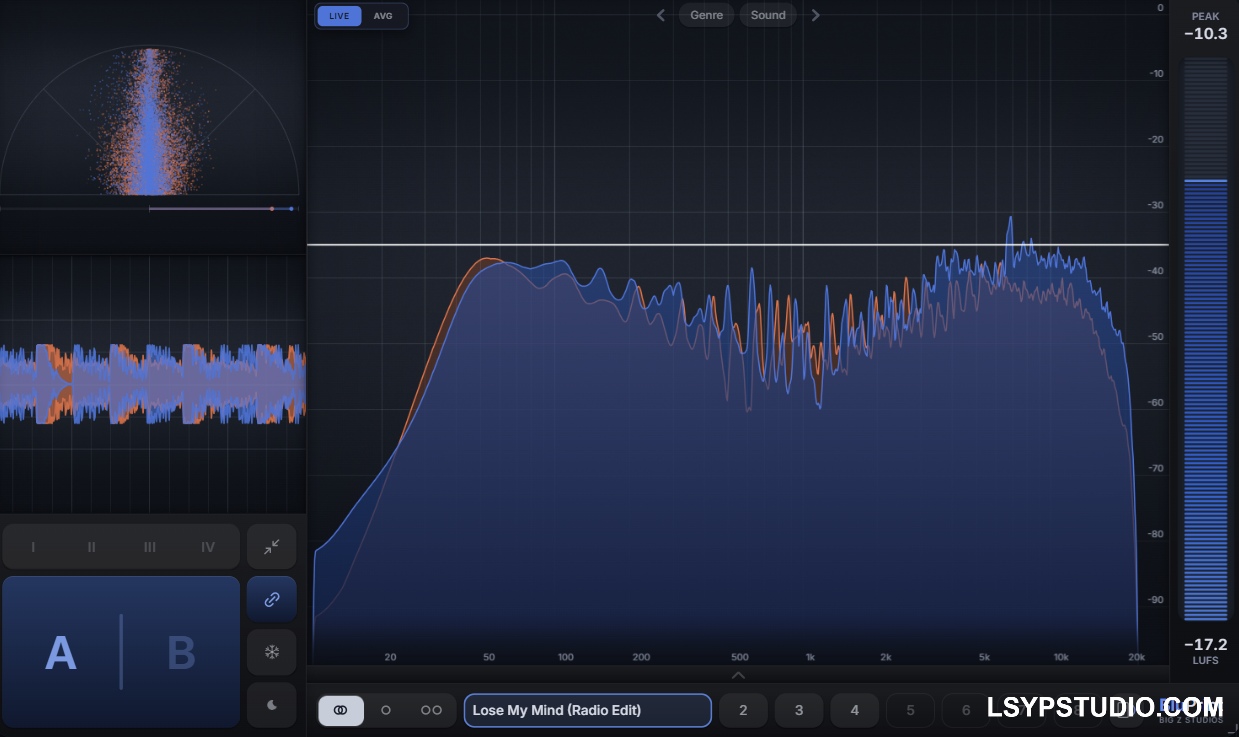
![图片[1]-均衡器插件Joey Sturgis Tones JST EQ v1.0.3 [WiN]-乐声音频-资源网](https://lsypstudio.com/wp-content/uploads/2026/02/image-2026-02-03T165249.577.jpg)
SEnki | 02 February 2026 | 4.3 MB
JST EQ 是一款功能丰富、灵活易用的均衡器插件。
它支持多达 24 个频段的均衡,能够轻松应对各种规模的均衡任务。每个频段都可高度调节,提供近十几个可选参数,助您微调均衡效果,包括中/侧均衡和动态均衡选项。如此简单易用、功能如此强大的均衡器,前所未有。
创新的用户体验:
JST EQ 拥有均衡器插件中最直观的用户界面之一。每个频段都提供您所需的所有控制选项,让您能够轻松掌控音频频谱,并对其进行自适应调整。每个频段的所有控制选项都触手可及!
其他功能呢?全部集中在一个屏幕上。通过将所有控件和可视化工具集成在一个屏幕上,您可以实时查看调整对声音的影响。
只需一眼,即可在播放过程中查看当前的音频电平和频谱。从这里开始,调整均衡器、创建新频段以及修改极性、声像和幅度等全局设置都只需点击几下即可完成。
需要更多细节?得益于其渲染的用户界面,JST EQ 具有自适应调整大小功能和全屏模式,方便您在需要微调设置时轻松放大插件窗口。
可视化您的均衡器
现代均衡器插件最重要的功能之一是能够准确地看到和听到均衡器如何改变您的声音。JST EQ 通过可视化工具实现这一点,该工具会显示插件处理前后的频谱,确保您能够看到对信号进行哪些添加(和移除)。这是插件能够以最透明的方式呈现其对信号所做的更改。
更喜欢只用耳朵来操作?我们知道您可能更喜欢只用耳朵来使用均衡器,因此 JST EQ 允许您从用户界面中独立移除可视化效果。您可以从插件的设置菜单中自定义 JST EQ 的外观和风格,以满足您的特定偏好。
每个点都清晰可见。
使用 JST EQ,您可以在单个插件中为混音中的任何音轨添加多达 24 个频段的均衡器。无需再在陷波均衡器和宽频均衡器之间做出艰难抉择。也无需再为加法和减法均衡器叠加而烦恼。只需一个简洁的界面,即可轻松管理所有均衡器调整。选择
您的滤波器
JST EQ 提供五种滤波器类型:
- 高通滤波器:衰减截止频率以下的频率成分。
- 低频搁架滤波器:提升或衰减低于选定频率的频率成分。
- 峰值滤波器:提升或衰减中心频率附近的频率。
- 高频搁架滤波器:提升或衰减高于选定频率的频率成分。
- 低通滤波器:衰减截止频率以上的频率成分
选择处理模式
默认情况下,新建的频段将处理音轨的全部音频。在立体声轨道上使用时,它们会获得更多功能——您可以将每个频段分别设置为左声道、右声道、中置声道或侧置声道。
只需单击一个按钮,每个频段还可以转换为动态均衡器。在动态均衡器模式下,您可以设置每个频段的滤波器阈值、启动时间和释放时间。
有了这些功能,您可以创建各种自定义的自动化处理器,例如齿音消除器、切音控制器、高音架激励器、音调平衡器等等!
其他控制
中/侧均衡器和动态均衡器只是 JST EQ 中一些主要功能。您还可以逐个频段地进行以下操作:
- 将滤波器设置为仅作用于信号的瞬态或延音部分。
- 使用聆听模式试听受影响的频率
- 旁路单个频段(不旁路整个插件)
JST EQ is a flexible, feature-rich equalizer plugin.
With support for up to 24 bands of equalization, JST EQ can handle any EQ task – big or small. Each EQ band is highly adjustable – featuring nearly a dozen optional parameters for fine-tuning your equalization efforts, including mid/side and dynamic EQ options. There’s never been an EQ this approachable or this packed with so many features.
Innovative User Experience
JST EQ has one of the most intuitive user interfaces when it comes to EQ plugins. Each EQ band provides every control you need to adaptively control and sculpt your audio spectrum’s sound right at your fingertips. Every possible control for each band is quickly within reach of your mouse!
And everything else? Well it’s all on one screen. By including all the controls and visualizers on one screen, you’re able to see how your adjustments affect your sound in real-time.
At a quick glance, you can see your current audio levels and frequency spectrum during playback. From there, adjusting EQ, creating new bands, and modifying global settings like Polarity, Pan, and Magnitude are just clicks away.
Need more detail? Thanks to its rendered user interface, JST EQ has adaptive resize functionality and fullscreen mode, making it easy to scale up your plugin window when you need to fine tune your settings.
Visualize Your EQ
One of the most important elements of a modern EQ plugin is the ability to see and hear exactly how the EQ is changing your sound. With JST EQ, this is done through a visualizer that shows the frequency spectrum both before and after the plugin, ensuring you’re able to see what you’re adding to (and removing from) your signal. It’s the most transparent a plugin can be about what it’s doing to your signal.
Prefer to work with just your ears? We know you might prefer to only use EQ with your ears, which is why JST EQ allows you to independently remove either visualization from the UI. Customize the look and feel of JST EQ from the plugin’s settings menu to suit your exact preferences.
Every Point. Your Control
With JST EQ, you can add up to 24 bands of EQ to any track in your mix within a single plugin. No more making tough decisions between notch EQ cuts and broader curves. No more layering EQs for additive and subtractive moves. Just one, clean interface where you can keep all of your EQ moves organized.
Choose Your Filter
JST EQ provides five filter types:
- High Pass Filter: Attenuate the frequency content below the cutoff frequency.
- Low Shelf Filter: Boost or cut the frequency content below the selected frequency.
- Peak Filter: Boost or cut the frequencies around a center frequency.
- High Shelf Filter: Boost or cut the frequency content above the selected frequency.
- Low Pass Filter: Attenuate the frequency content above the cutoff frequency
Select a Processing Mode
By default, new bands will process the full audio of your track. When used on a stereo track, they gain additional functionality – making it possible for you to set each band up for the left channel, right channel, mid, or sides.
Each band can also be turned into a Dynamic EQ with the click of a button. In Dynamic EQ mode, each band will let you set the Threshold, Attack, and Release of the filter.
With this, you can create all kinds of automated processors of your own like de-essers, chug controllers, high-shelf exciters, tonal balancers, and more!
Additional Controls
Mid/Side EQ and Dynamic EQ are just some of the major features available in JST EQ. On a band-by-band basis, you can also do things like:
- Set the filter to only act on the Transient or Sustain of a signal
- Audition the affected frequencies with Listen mode
- Bypass individual band (without bypassing the full plugin)
https://joeysturgistones.com/collections/mixing-plugins/products/jst-eq
![乐器均衡器Final Mix Software WESTLAKE EQ III v3.0.3 [WiN, MacOSX]-乐声音频-资源网](https://lsypstudio.com/wp-content/uploads/2026/08/image-2026-08-07T221527.916-800x215.jpg)
![为您提供直接从录音中学习您喜爱的歌曲并高效练习的工具Aurally Sound Song Master PRO v5.0.02 [WiN]-乐声音频-资源网](https://lsypstudio.com/wp-content/uploads/2026/08/下载-6-1-800x512.jpg)
![母带处理的真正艺术Steinberg WaveLab Pro 13 v13.0.30 [WiN]-乐声音频-资源网](https://lsypstudio.com/wp-content/uploads/2026/08/下载-8-1-800x533.jpg)
![FM、频谱、波表、虚拟模拟和颗粒合成Steinberg HALion 7 v7.5.0 [WiN]-乐声音频-资源网](https://lsypstudio.com/wp-content/uploads/2026/08/下载-7-1-800x534.jpg)
![母带处理-LANDR Mastering Plugin PRO v1.1.35 U2B FIXED [MacOSX]-乐声音频-资源网](https://lsypstudio.com/wp-content/uploads/2025/12/image-520.png)
![频谱动态压缩器-Sonible Smart Comp 3 v1.0.1 [WiN]-乐声音频-资源网](https://lsypstudio.com/wp-content/uploads/2025/12/image-521.png)
![母带处理-LANDR Mastering Plugin Pro v1.1.35 [WiN]-乐声音频-资源网](https://lsypstudio.com/wp-content/uploads/2025/12/image-522.png)